To conduct building inspections out in the field without relying on an internet connection, you will need to set up the HLS system mobile app on your iPad. The app runs through a secure database host called FileMaker Go. Follow these steps to get configured.
Step-by-Step Installation
Step 1: Install FileMaker Go 2026
On your iPad, open the App Store.
Search for and install the Claris FileMaker Go 2026 app.
Direct link: Download Claris FileMaker Go 2026
Step 2: Download the Mobile File
Open the Safari browser on your iPad and go to https://hls.roeapps.org/.
Log in using your standard Microsoft or Google credentials.
On your dashboard, look for and click the button to Download the Mobile File.
Step 3: Open the File in FileMaker Go
Locate your iPad browser's Downloads folder (indicated by the down arrow inside a circle icon next to the address bar).
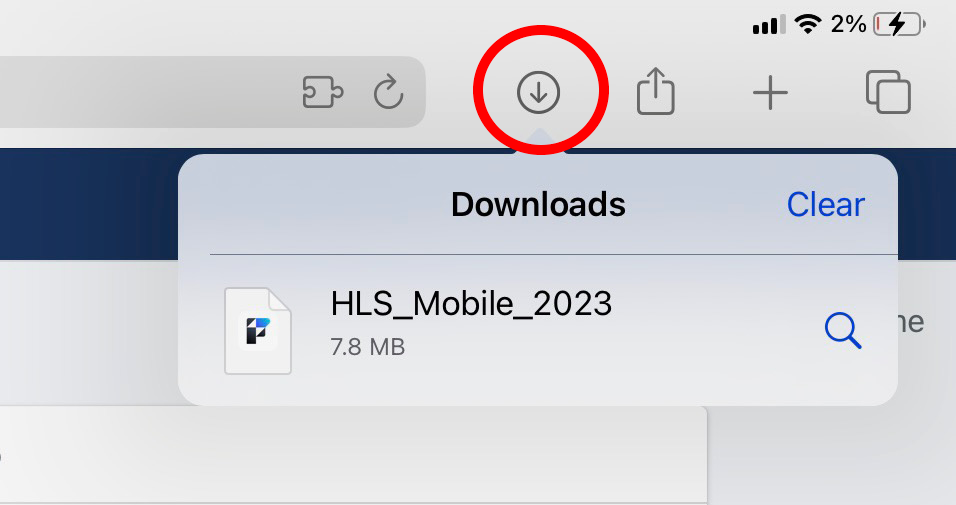
Tap the downloaded HLS file to open it.
Tap the Share button (the box with an arrow coming out of the top).
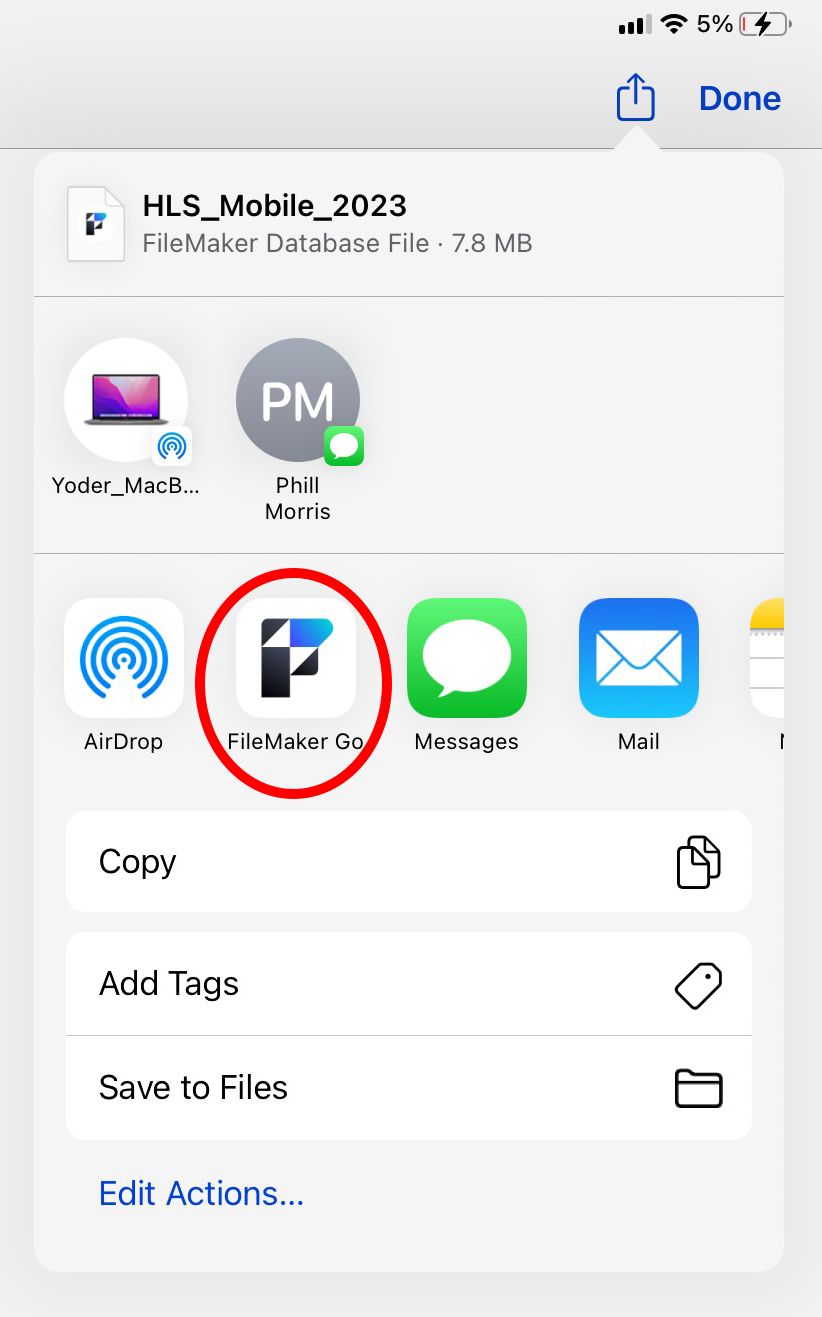
Select FileMaker Go from the list of available apps.
The HLS system mobile environment is now successfully linked to your iPad!
How to Access the App in the Future
Whenever you need to perform an inspection, simply open the Claris FileMaker Go 2026 app on your iPad screen. If the system doesn't launch automatically upon opening, look inside the FileMaker dashboard and tap on the HLS app icon to finish opening it.
This video was made back in summer 2025 but it is still the process to do it. Just make sure you are using Claris FileMaker Go 2026 and the newest HLS mobile file.
Was this article helpful?
That’s Great!
Thank you for your feedback
Sorry! We couldn't be helpful
Thank you for your feedback
Feedback sent
We appreciate your effort and will try to fix the article